How to Request Indexing in Google Search Console

To request indexing in Google Search Console, inspect the page's full URL with the URL Inspection tool, then select Request indexing. You must be an owner or full user of the property. Use this for a few URLs. For many new or updated pages, submit a sitemap.
A request asks Google to crawl the URL. It does not guarantee that Google indexes the page or shows it in search results.
Request indexing for one URL
Suppose you published https://example.com/blog/pruning-apple-trees and it does not appear in Google yet.
- Open Search Console and select the property that contains the URL. A Domain property covers every subdomain and protocol. A URL-prefix property covers only addresses that start with its prefix. Google's property guide explains both types.
- Paste the complete URL into the inspection field at the top of the page, then press Enter.
- Read the status (1). This first result is the information in Google's index, not a live test of the page.
- Select Request indexing (2).
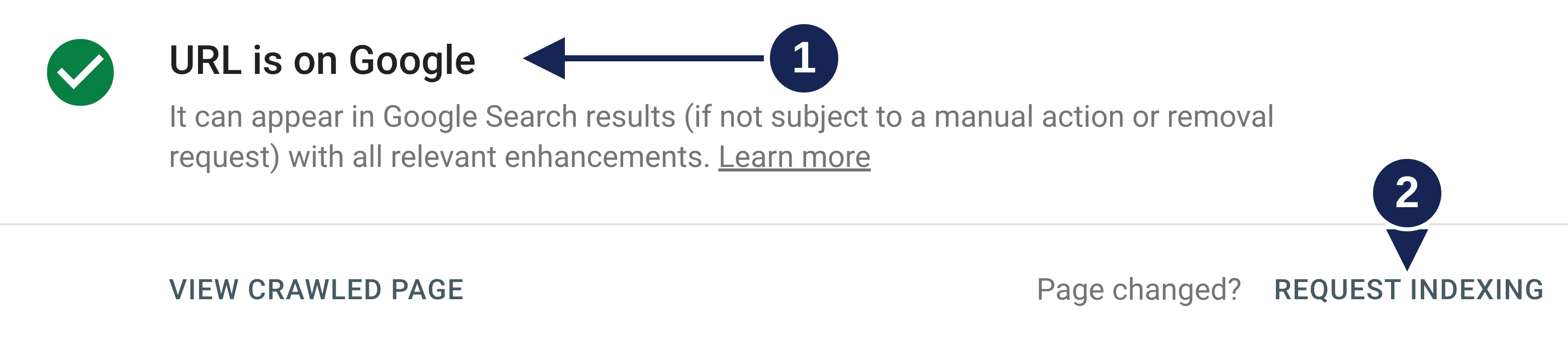
Open the inspection result at full size.
Before Google accepts the request, it runs a quick check for immediate indexing errors. If the page passes, Google adds it to its crawl queue. If the live test finds the page non-indexable, you cannot request indexing. Google's URL Inspection help describes this check.
If you cannot request indexing, check your permission on the property. Only an owner or a full user can request indexing.
What the inspection status tells you
The status at the top of the result is the first thing to read. It tells you whether a request is the right next step.
| Status | What it means | Next step |
|---|---|---|
| URL is on Google | Google has the URL in its index. | If you changed the page, request indexing so Google recrawls it. If the page is missing from results, check the Manual Actions and Security Issues reports. |
| URL is not on Google | Google has not indexed this URL. The page indexing details give the reason, for example "Discovered - currently not indexed" or "URL is unknown to Google". | Fix any blocking cause first, then request indexing. For an unknown URL, also add it to your sitemap and link to it from your indexed pages. |
If you changed the page after the crawl time in the result, select Test live URL to check the current version. A live test does not cover every indexing condition. A page that passes it can still fail to be indexed.
Fix blocking causes before you request
A request cannot override an instruction on the page. Check these first:
- A
noindexrule. Anoindexmeta tag orX-Robots-Tagheader tells Google not to index the page. Remove it if you want the page indexed. - A robots.txt rule. If Crawl allowed? shows "No", a robots.txt rule blocks Google from crawling the page. Remove the rule that blocks it.
- A different canonical. If the page names another URL as its canonical, Google can index that URL instead.
- A redirect. The live test checks the redirect target, and it does not tell you that it followed a redirect. Inspect the final URL.
How many requests you can make
Google sets a daily limit on indexing requests, and it does not publish the number. Requesting the same URL many times does not make Google crawl it faster. Google's recrawl guide states both.
If you hit the limit, or you have more than a few URLs, submit a sitemap instead. Use the Sitemaps report in Search Console, or list the sitemap in your robots.txt. Set lastmod only to the date of a significant page change. Google retired its sitemap ping endpoint, so a script that pings google.com/ping does nothing.
After you request indexing
Google says that crawling can take from a few days to a few weeks after a request. A request is not a promise of inclusion: Google decides whether to index the page, and when.
To see the result, inspect the URL again later. The inspection result shows the last crawl time and the current status. Do not read an accepted request as an indexed page.
You can also check from outside Search Console. The Google Index Checker runs a Google site: search for one URL. That result is an estimate from public search output. It does not read URL Inspection.
Can you request indexing through the API?
No API sends the same request as the Request indexing button. The URL Inspection API reads the stored index information for a URL. It has no live test and no request-indexing operation.
The Google Indexing API sends a different notification. Google documents it for job posting and livestream pages only. For an ordinary page, use URL Inspection or a sitemap. Can you use the Google Indexing API for blog posts? explains that decision.